
Step by step
Create a pistol item
Create a Service pistol item, choose its world mesh and save its linked assets in Item Designer.
SGF 1.0.1 · Unreal Engine 5.8 · Reviewed
A non-stackable Service pistol item with a saved world representation and four project-owned assets.
On this page
Create a Service pistol item, give it a name and stack limit, add a 3D world representation, and save the linked assets through Item Designer. This first journey produces an item definition and its world recipe. Firing, ammunition, equipping, inventory transfer and pickup interactions are follow-on tasks.
The screenshots show the completed journey in SFGDev, our development project. You create the /Game/Items/JourneyPistol assets by following these steps; they are project-owned examples, not additional item content supplied by SGF.
Before you start
Import or select a firearm Static Mesh that you can use in your project. This example demonstrates the authoring workflow with SFGDev’s existing detailed pistol; it does not add that artwork to SGF’s distribution.
Enable SGF and configure StormAssetManager as your project’s Asset Manager Class. See the project setup guidance for the framework prerequisites. The detailed screenshot mesh is project content. Enable Show Plugin Content in Content Browser settings when browsing SGF’s bundled alternatives.
In Project Settings > Game > Asset Manager, make sure these primary asset types scan your item content folder. Use Data Asset classes, with Has Blueprint Classes and Is Editor Only both false. The example folder is /Game/Items; the starter recipe uses Always Cook for the authored types. Keep existing type entries and add this directory to them where needed.
| Primary asset type | Base class |
|---|---|
| StormItemArchetype | /Script/StormItems.StormItemArchetype |
| StormItemWorldDescriptor | /Script/StormItems.StormItemWorldDescriptor |
| StormActorDefinition | /Script/StormActorAssembly.StormActorDefinition |
| StormWorldItemPresentationProfile | /Script/StormItems.StormWorldItemPresentationProfile |
SFGDev’s existing registrations already cover this pistol example; no additional settings changes are needed. Its Actor Definition and world-profile registrations cover /Game. Restart the Editor after changing asset discovery settings. Discovery in the Content Browser alone does not establish runtime asset loading or cooking.
Search Project Settings for Item Content Root under Storm Items Editor. Use /Game/Items for this walkthrough. Item Designer already uses this setting to create an item folder and keep related representation assets underneath it. With another root, update the scan paths above accordingly.
1 Open Item Designer
Choose SGF > Item Designer… from the main Level Editor menu. It opens a single workspace on Item Browser. Your list may differ from SFGDev’s existing examples.
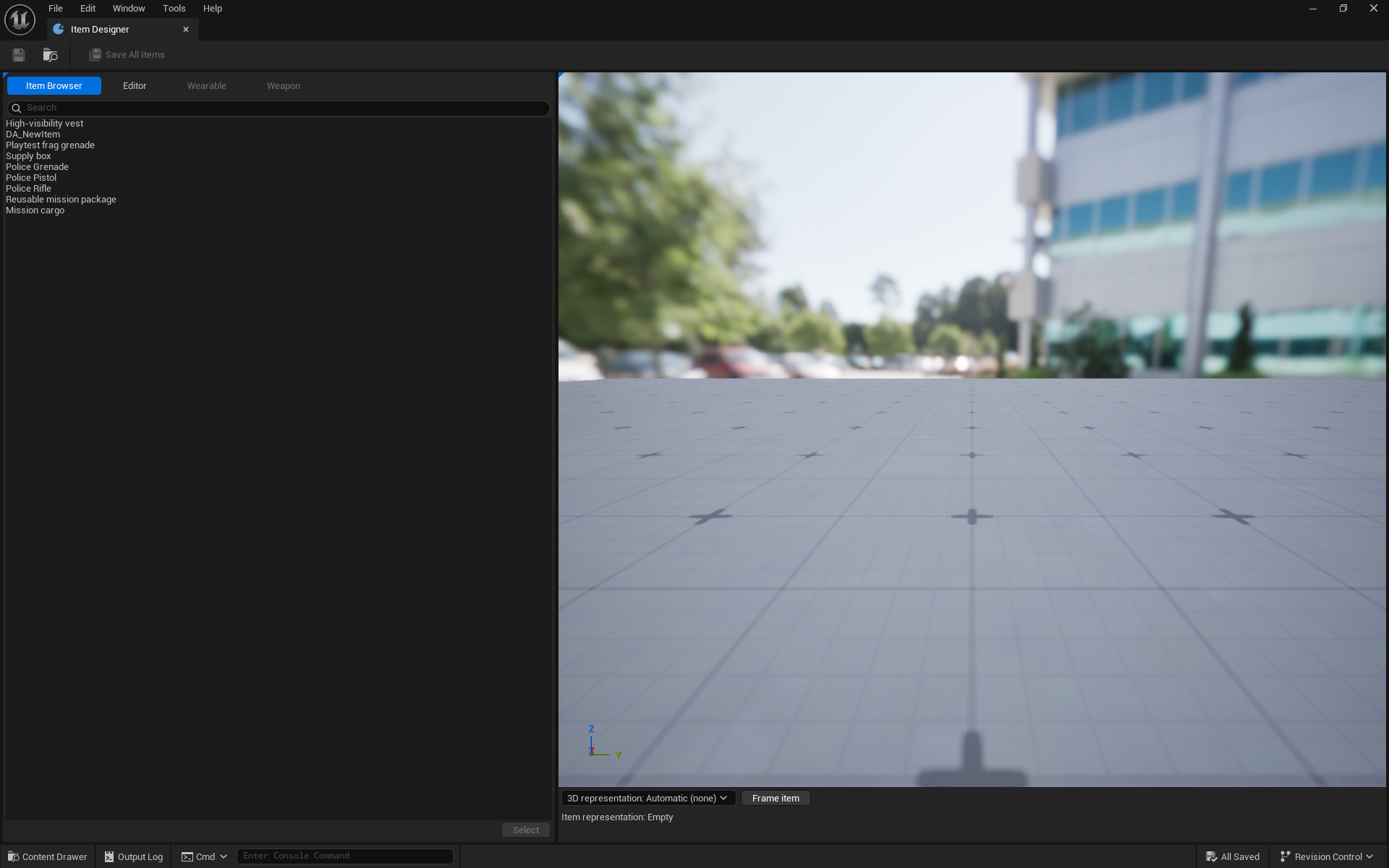
Select the Editor tab, then click Create Item. You can also create a Storm Item from Add > Storm Game Framework in the Content Browser, but this walkthrough uses Item Designer’s managed folder workflow.
2 Create the item asset
In Create Storm Item, enter JourneyPistol. Check the destination shown beneath the name:
/Game/Items/JourneyPistol/DA_JourneyPistolChoose a different name if that example already exists. Click Create. Item Designer selects the new item and switches to Editor.
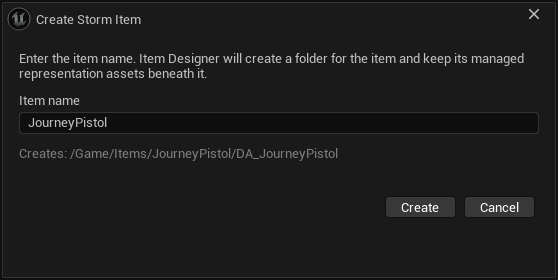
JourneyPistol is the asset’s naming stem. The player-facing name is a separate field that you set next.
3 Set the item details
Set these fields in Item:
| Field | Value |
|---|---|
| Name | Service pistol |
| Description | A service pistol. An item definition with a static world representation. |
| Max Stack Size | 1 |
Leave Item Icon empty for this first pass, or choose a texture you own. Type is a gameplay classification tag from your project’s vocabulary; this example leaves it unset. A type tag does not implement firing or other weapon behaviour.
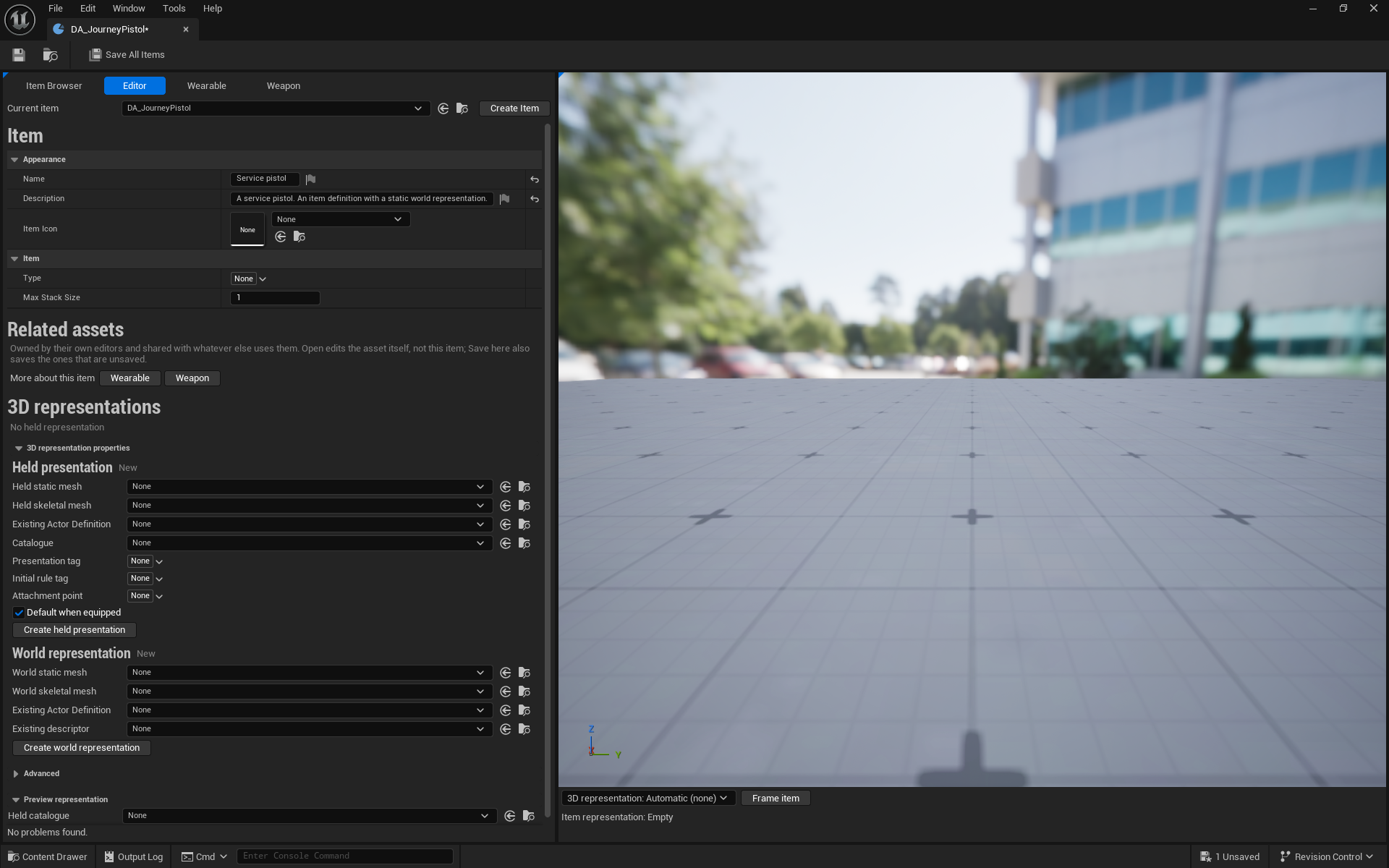
A maximum of 1 keeps each pistol as an individual item instance. The item definition describes the kind of item; individual runtime instances have their own identities and quantities.
4 Choose a world mesh
Under 3D representations, expand 3D representation properties if needed and scroll to World representation.
For World static mesh, choose a detailed pistol mesh from your project. The SFGDev screenshots use:
/Game/Modular_Police/Mesh/Static_Meshes/Weapon/Pistol/SM_PistolIn SFGDev this is under Content > Modular_Police > Mesh > Static_Meshes > Weapon > Pistol. In your own project, select a compatible gun static mesh you can use. The detailed Police pistol is demonstration art from SFGDev, not content supplied by the SGF plugin. Keep World skeletal mesh, Existing Actor Definition and Existing descriptor empty when creating this new representation from a static mesh. Leave the Held presentation fields unchanged.
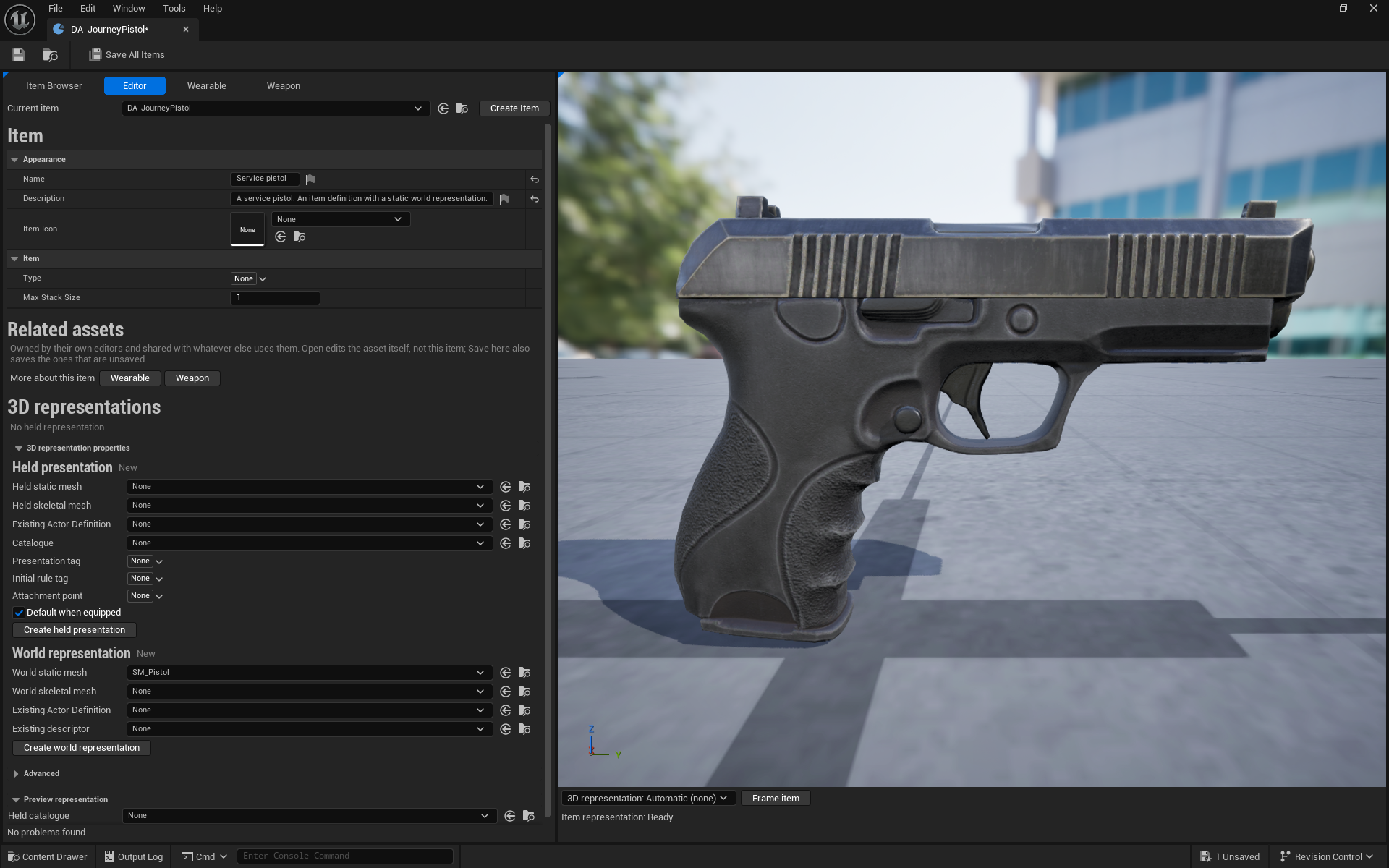
The pistol should appear in the viewport. Use Frame item below it if the camera is not centred. Selecting a mesh previews the draft; click Create world representation to create and link its data assets.
5 Create and save the representation
After Create world representation, check the World row under 3D representations. It should name DA_JourneyPistol_WorldDescriptor. The editing controls now show Editing assigned and Save world changes.
Click the toolbar Save button, or press Ctrl + S, to save the current item’s managed asset graph. This includes the item and its new profile, definition and descriptor. Save All Items has a broader scope across dirty item graphs, so use the current-item Save for this journey.
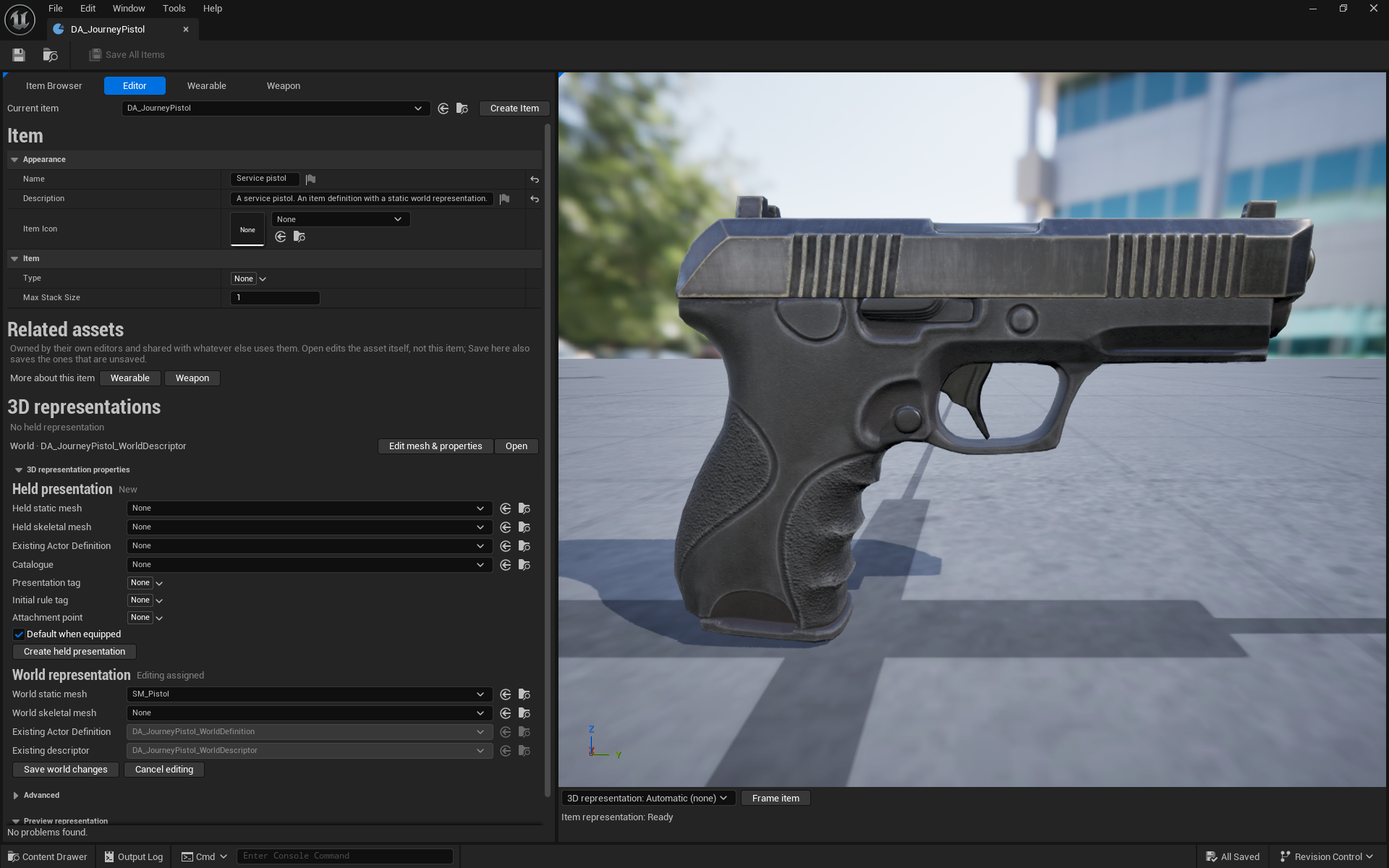
If you later choose a different mesh while Editing assigned, click Save world changes to apply that representation edit, then save the item’s assets to disk. The source mesh remains shared; editing the mesh asset itself would affect every user of it.
6 Reopen and check the result
Close Item Designer. In the Content Browser, open /Game/Items/JourneyPistol/DA_JourneyPistol again. Check the Service pistol name, stack maximum 1, and the assigned World row.
In the current editor, a world-only item can reopen with an empty preview even though its world assets are saved correctly. Under World representation, select SM_Pistol again in World static mesh, then click Frame item. This refreshes the visual preview without changing the saved profile. Automatic restoration of this preview is a tooling improvement still to make.
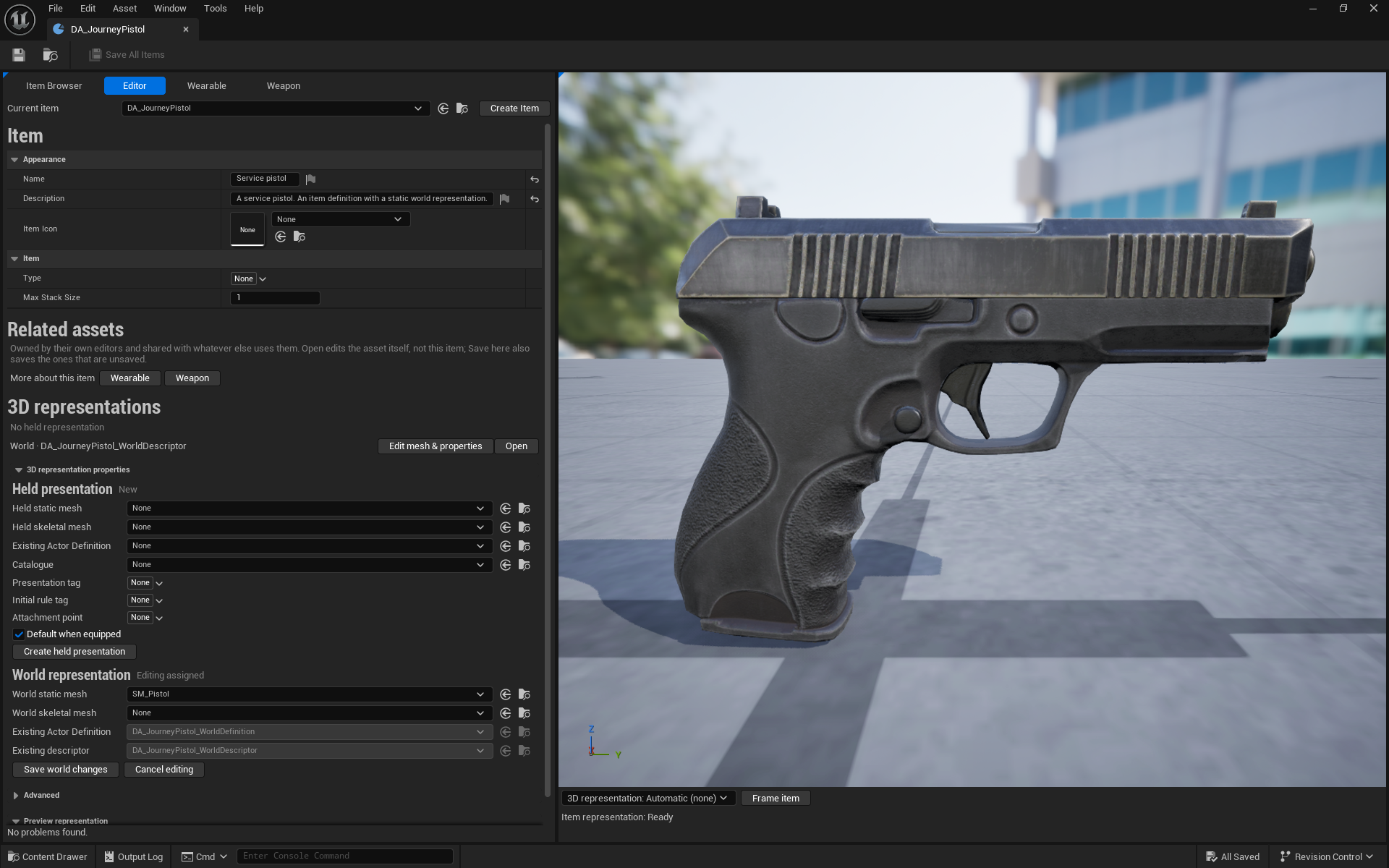
The item should be saved without an asterisk in its title. The preview footer should report Ready. Its representation selector can still show Automatic (none) for this world-only preview; that label describes the held-presentation selection, not whether the displayed world mesh is saved.
Check what you have built
The managed folder contains four assets:
| Asset | Responsibility |
|---|---|
| DA_JourneyPistol | Name, description, stack limit and world-descriptor reference |
| World/DA_JourneyPistol_WorldDescriptor | Chooses the item’s world Actor Definition |
| World/DA_JourneyPistol_WorldDefinition | Chooses the reusable world-item host and its presentation profile |
| World/DA_JourneyPistol_WorldProfile | Selects the static mesh for that world representation |
A normal static representation uses SGF’s existing host; you do not need a new Blueprint class for each mesh. Item Designer’s viewport is a local visual preview. Game logic creates an item instance and uses the saved world recipe when that item needs an actor in a level.
If the representation will not appear, check the world mesh, the assigned descriptor, the four asset scan types and the preview-refresh step above. If the create dialog proposes the wrong folder, check Item Content Root before creating more assets. Adding the item to an inventory, picking it up and giving it use behaviour build on this saved definition.
Using only SGF’s bundled art
If you do not have a gun mesh yet, SGF includes /SGF/ALS/ALS/OverlayObjects/Pistol/SKM_Als_Pistol. It has a yellow prototype material. Choose that asset in World skeletal mesh, leave World static mesh empty, and follow the same create/save/reopen workflow with the skeletal field. That route uses the existing skeletal host instead. The main screenshots use the detailed static pistol described above.