
Practical guide
Give an NPC a first behaviour
Make a small action set and use it from a state on an AI-controlled Humanoid.
SGF 1.0.1 · Unreal Engine 5.8 · Reviewed
When you finish
You can see your AI-controlled pawn enter its starting state and run a simple action.
On this page
A state describes what the NPC is doing at a given time, such as waiting or investigating. StormAI runs the states and decides when to leave them using rules you supply. StormAIActions chooses from actions you make available in a state.
Make a small action set
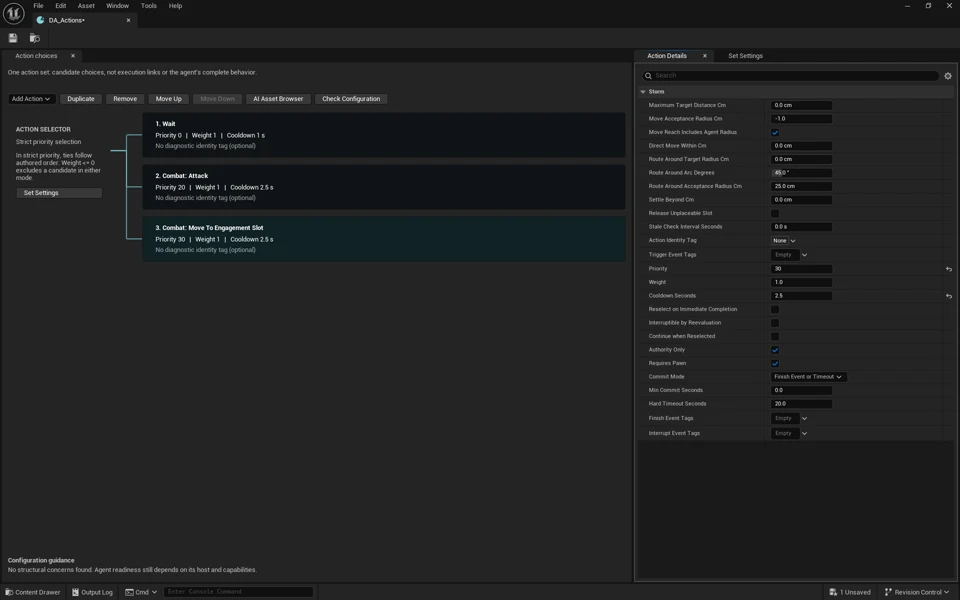
- In the Content Browser, create an SGF AI Action Set in your project. Open it in the AI Action Editor.
- Use Add Action and start with Wait. Give it a short duration. Use a positive weight and check the set’s selection mode before adding any other actions.
- Select Check Configuration, review the result and save. To reuse the same actions on another NPC, assign this set there too. Duplicate the asset before making changes specific to one NPC.
Connect the set to a character
- Create a Storm AI State and add the Run Action Selector task. Assign your action set to that task. In a Storm AI State Machine Config, map a gameplay tag to the state and set that tag as Default State Tag.
- Make a project-owned Blueprint based on BP_HumanoidAIController. Add a Storm AI Action Selector component to that controller and assign your state machine asset in AI Configuration. On a placed Humanoid, select your new controller class and set Auto Possess AI for placed actors.
- Press Play. Check possession and state entry first, then verify that the wait action starts. A waiting NPC can look idle whether the action runs or fails to start. Use the state or action diagnostics to tell the difference.
- Once that works, add a second state and an exit rule. Test what happens when the rule is met and what happens while it remains false.