
Practical guide
Find and open AI assets
Use the AI Asset Browser to locate action sets, states, senses and engagement configuration.
SGF 1.0.1 · Unreal Engine 5.8 · Reviewed
You can find an AI asset, open its owning editor and locate it in the Content Browser.
On this page
An AI agent can use several assets with different responsibilities. The AI Asset Browser gives you one place to find those assets across your project and enabled plugin content.
1 Open the AI Asset Browser
From the main Level Editor menu, choose SGF > AI Asset Browser…. You can also use the AI Asset Browser button in the AI Action Editor.
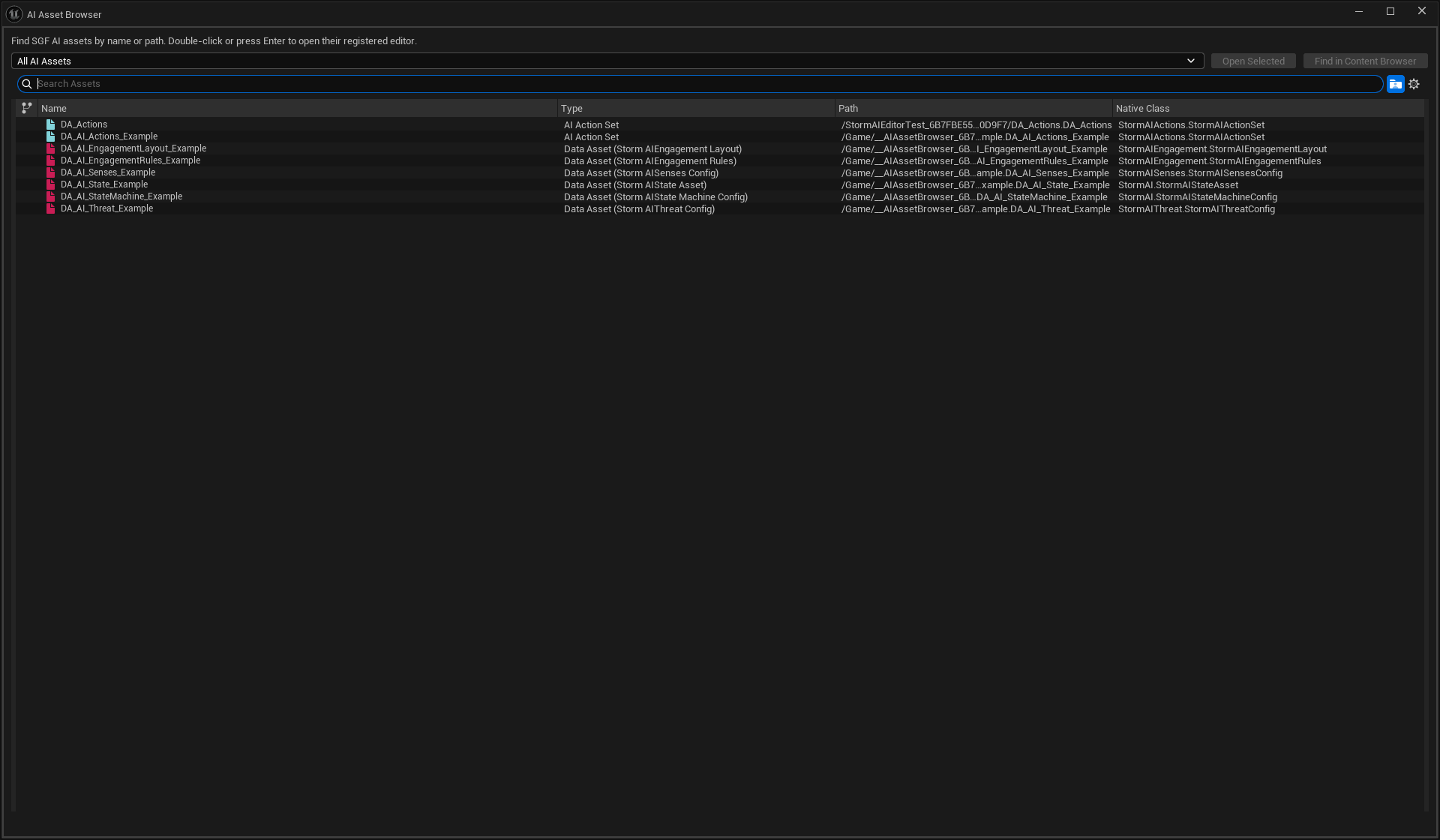
The screenshot uses temporary editor-test examples. Those names are illustrative; they are not a set of game AI assets supplied for your project.
2 Narrow the list
Use the name/path search to find a known asset, or the type selector to focus on one category:
| Asset category | What you are looking for |
|---|---|
| AI Action Sets | A composition of actions and their configuration |
| AI States and State Machine Configs | Existing state assets and the configuration linking them |
| Senses Configs and Threat Configs | Perception and threat configuration |
| Engagement Layouts and Engagement Rules | Engagement configuration used by the relevant AI capabilities |
The browser searches registered asset metadata. It does not need to load every asset just to list it. Instanced actions and tasks live inside their owning assets, so they are not separate browser rows.
3 Open the asset in its editor
Select a row and choose Open Selected, double-click it, or press Enter.
An AI Action Set opens in the AI Action Editor, where its action composition and selected-action Details can be inspected. Other AI types open in their registered editors. This browser does not add a visual state-machine editor.
Use Find in Content Browser when you need to inspect the asset’s folder and neighbours.
4 Check an empty or unavailable result
An empty new project can legitimately have no matching assets. Clear the search and type filter before assuming an asset is missing. Confirm that its content folder belongs to the project or an enabled plugin.
You can browse during Play or Simulate, but Open is disabled during those sessions and while play is queued. Stop the session before opening an asset for authoring.
The browser is for discovery and opening. It does not rename, delete, create or save assets, and opening an action set does not start AI gameplay. Connecting a configured behaviour to a character is a separate task.