SGF editor tools
Character Designer
Use Storm Dashboard > Characters > Create Character to start another character definition, or Actor Definition Browser to find an existing one. You can also open the browser from SGF > Actor Definition Browser in the Level Editor menu. Open a character definition to edit its capability profiles, which configure features such as appearance, abilities and equipment. When two definitions share a profile, changes to that profile affect both. Duplicate it into your project when you want a character-specific variation.
To use a different definition on your starter, open its project-owned pawn Blueprint, choose Class Defaults, set Default Definition, and test in the generated level. The selected game mode determines which pawn the player gets.
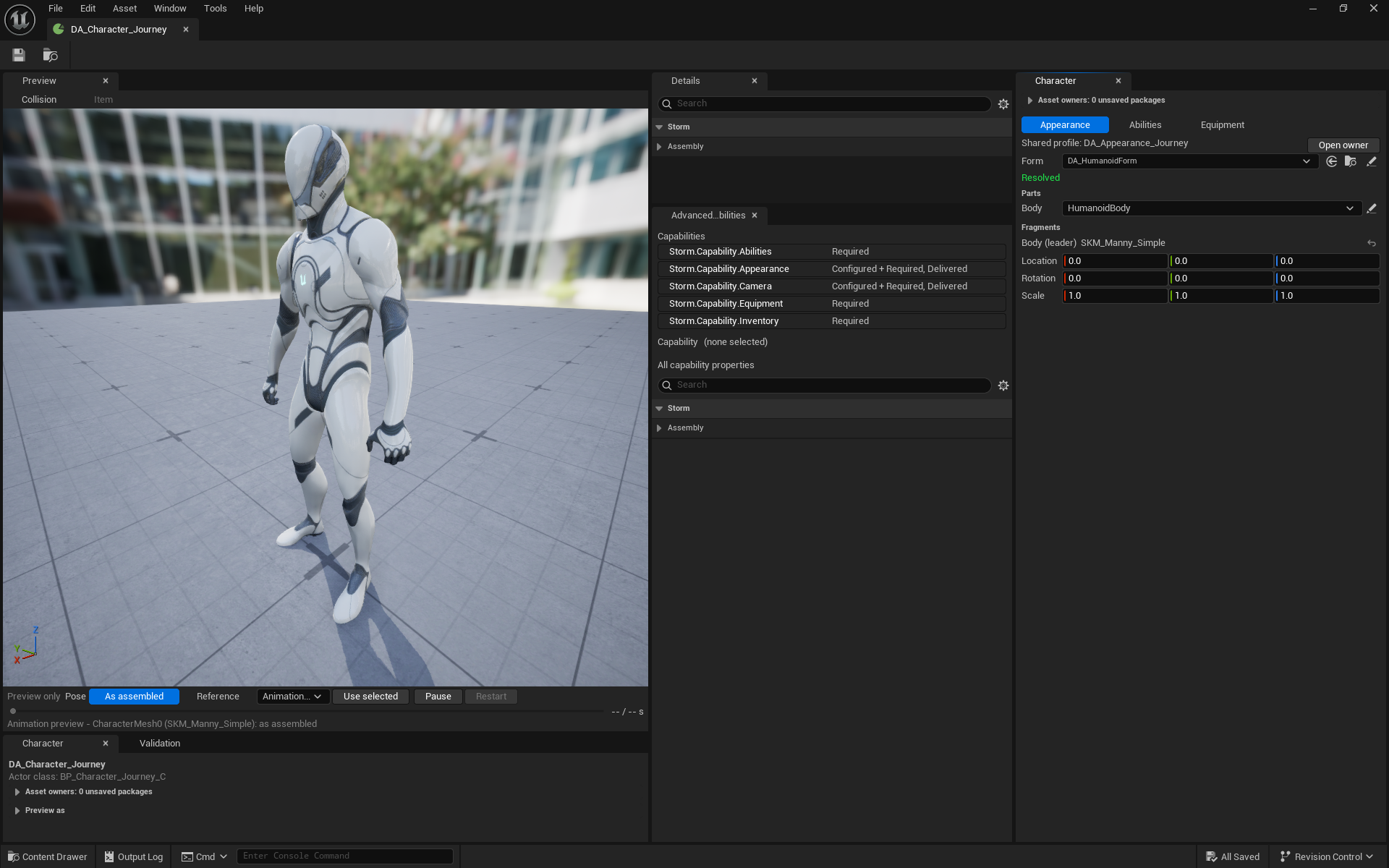
Character Designer with the preview and definition details. The demonstration character art is project content.
Item Designer
Choose Create Item from the dashboard, enter a name, confirm the destination and save the new asset in Item Designer. You can also open SGF > Item Designer and click Create Item there. Use SGF > Item Browser to find existing items and the designer to change their data.
For a first edit, change its display name and choose or create a world representation with a static mesh. Save and reopen the item to verify the choice. The starter level grants the item selected by its setup. A newly created item must be assigned to a grant or loadout, or placed as a pickup through your game's world item workflow.
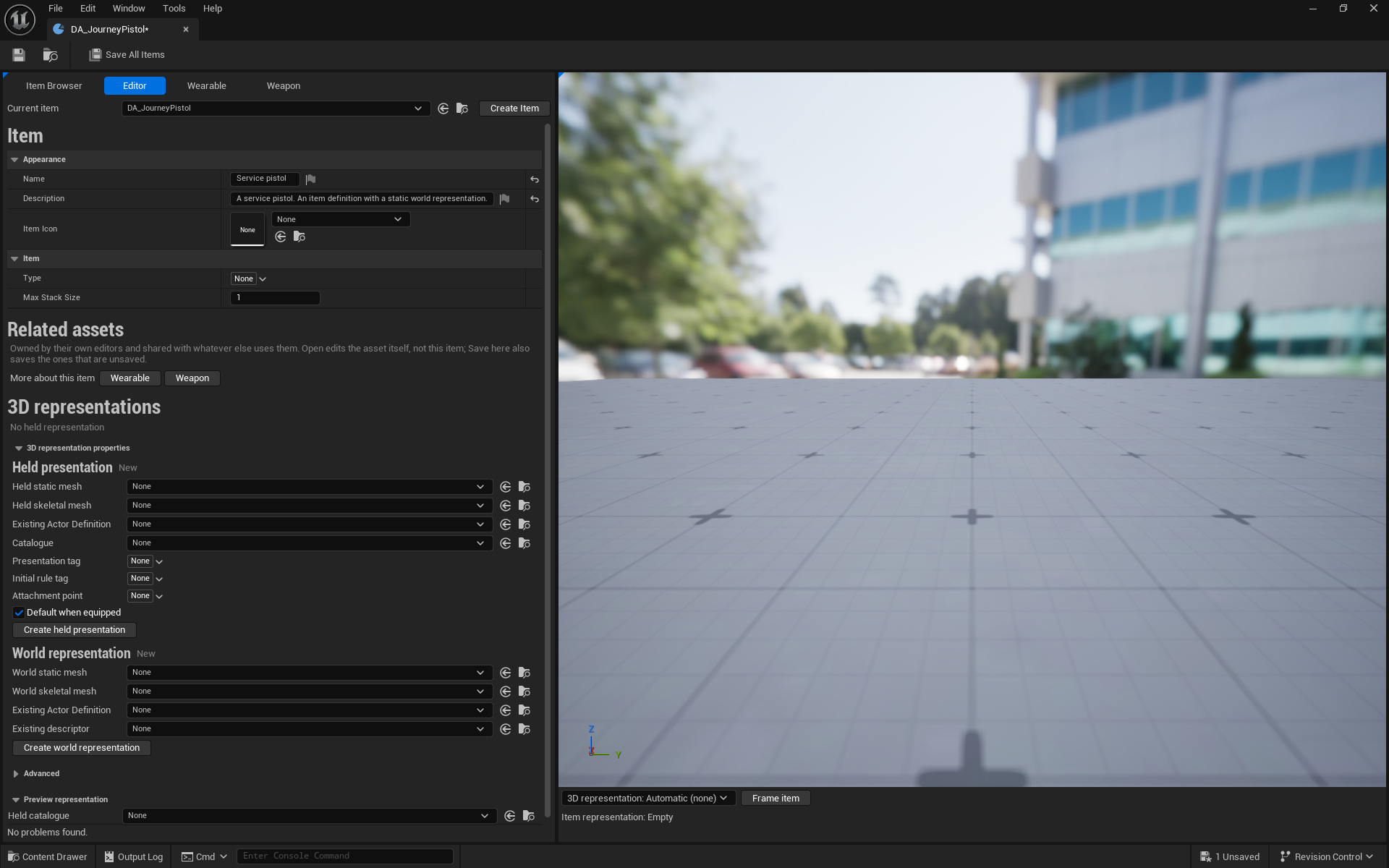
Item Designer showing an item's details. The Service pistol art is project content.
NPC behaviour tools
Use SGF > AI Asset Browser to search by name, path or type. Open a selected action set to edit it. Other asset types, such as states, senses and engagement rules, open in their registered editors.
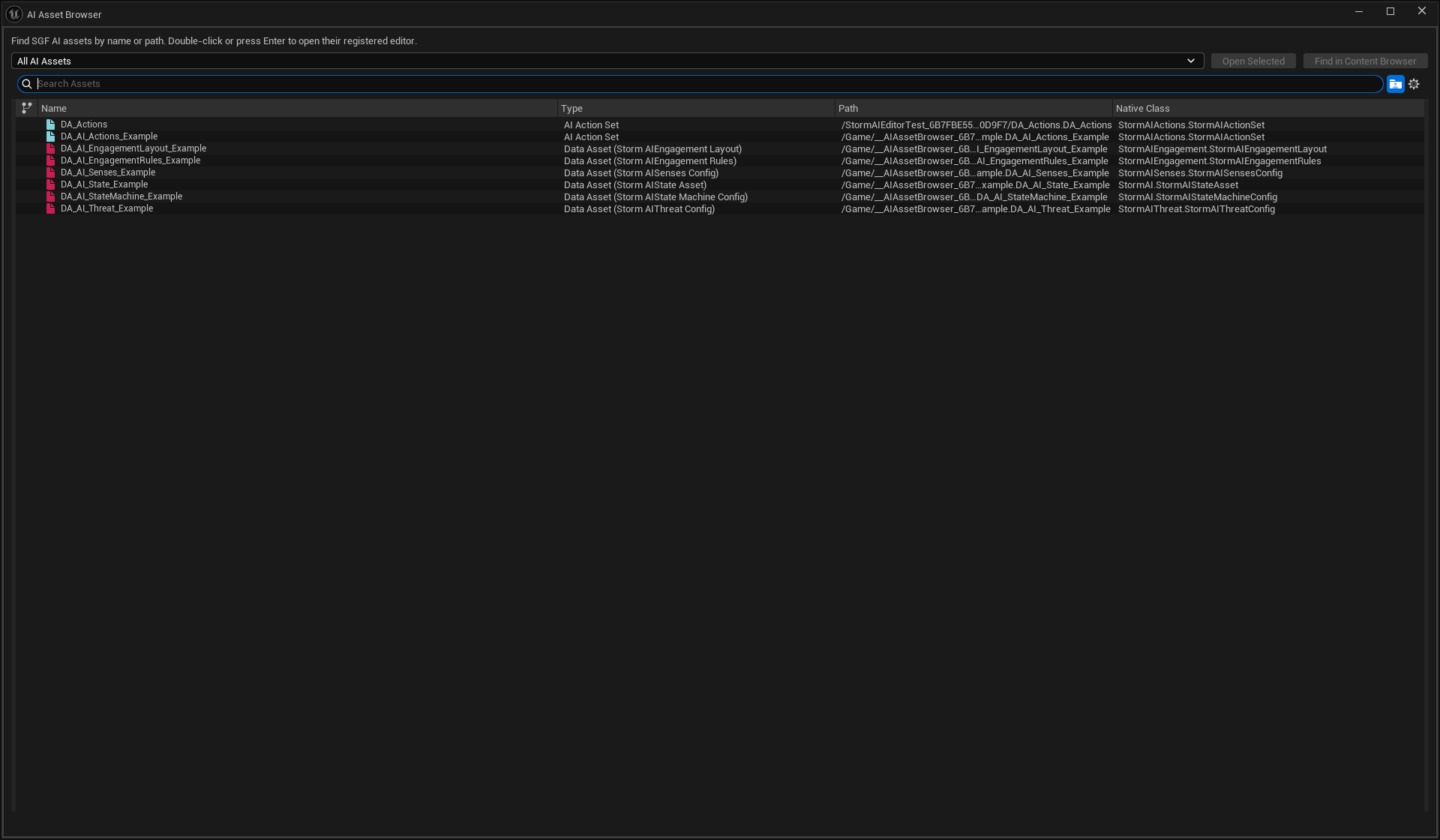
AI Asset Browser with the type picker and asset list
Create an SGF AI Action Set from the Content Browser to try the AI Action Editor. Use Add Action to add a Wait action, edit its fields in Action Details, then use Check Configuration and save. Use Set Settings to review selection mode, event tags and throttles. A selector task in an AI state references action sets through its Action Sets field. The controller's state-machine configuration determines which state runs.
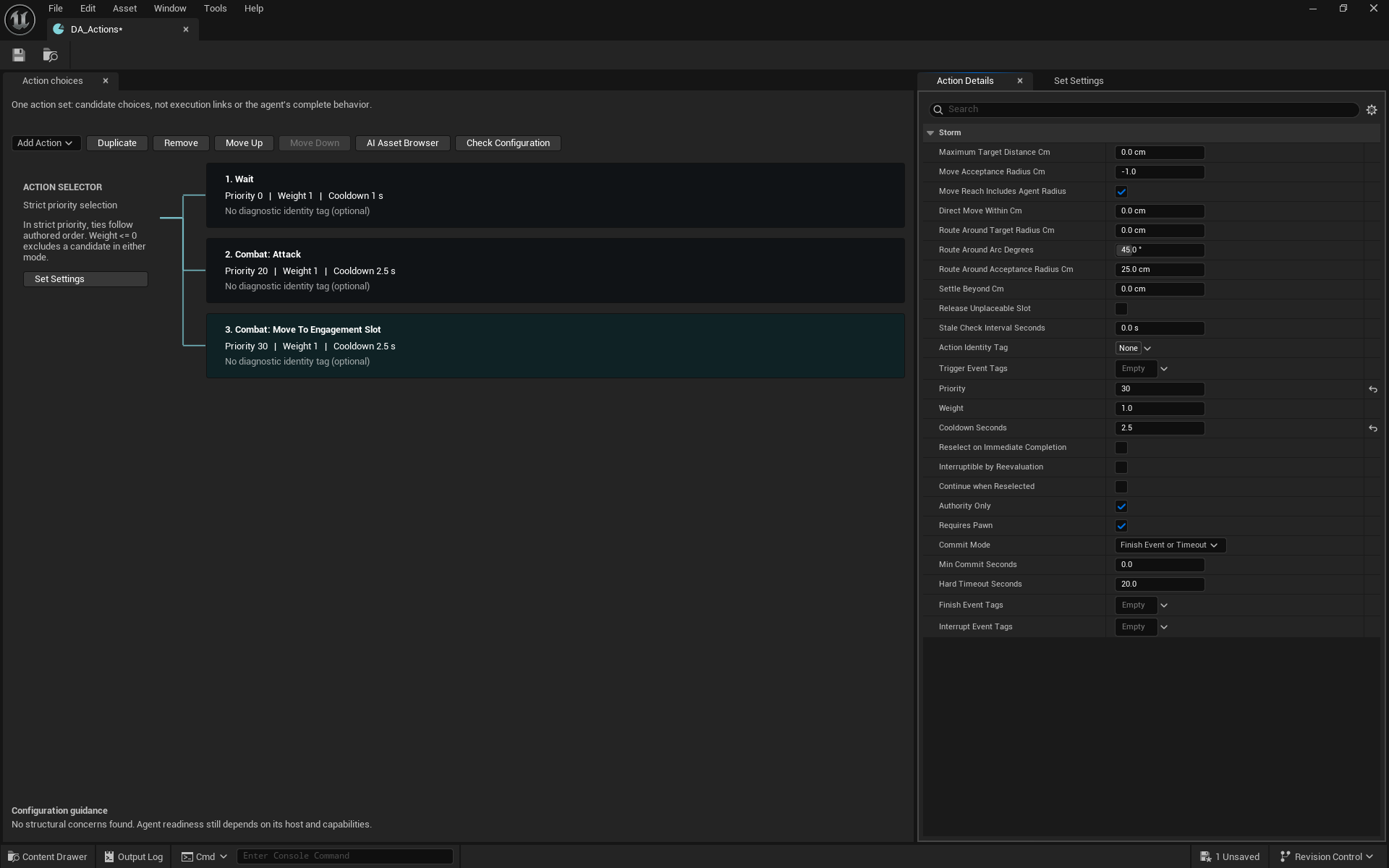
AI Action Editor with action cards and the selected action's details
In-game menus and player settings
Storm UI uses a root layout for each local player, CommonUI layers for placement and a widget registry to map a widget tag to a screen. In a project using SGF UI, create a screen from a CommonUI activatable widget, register it under a widget tag and pick the destination layer. Assign the layout and registry in Storm UI settings. To try a startup screen, add a Storm UI Entry Point Component to your local player's controller Blueprint and set its Entry Widget Tag. Play, check the active layer, and test focus and Back with the inputs you support.
A player-facing settings screen is a widget in your game. Wire a control to the setting it should read or change. For example, a music slider can read and set a control from the project's Storm Audio profile. Verify the audible result, then reopen the screen and check that its displayed value agrees with the applied value. Loading screen presentation is configured separately in Storm Loading Screen.
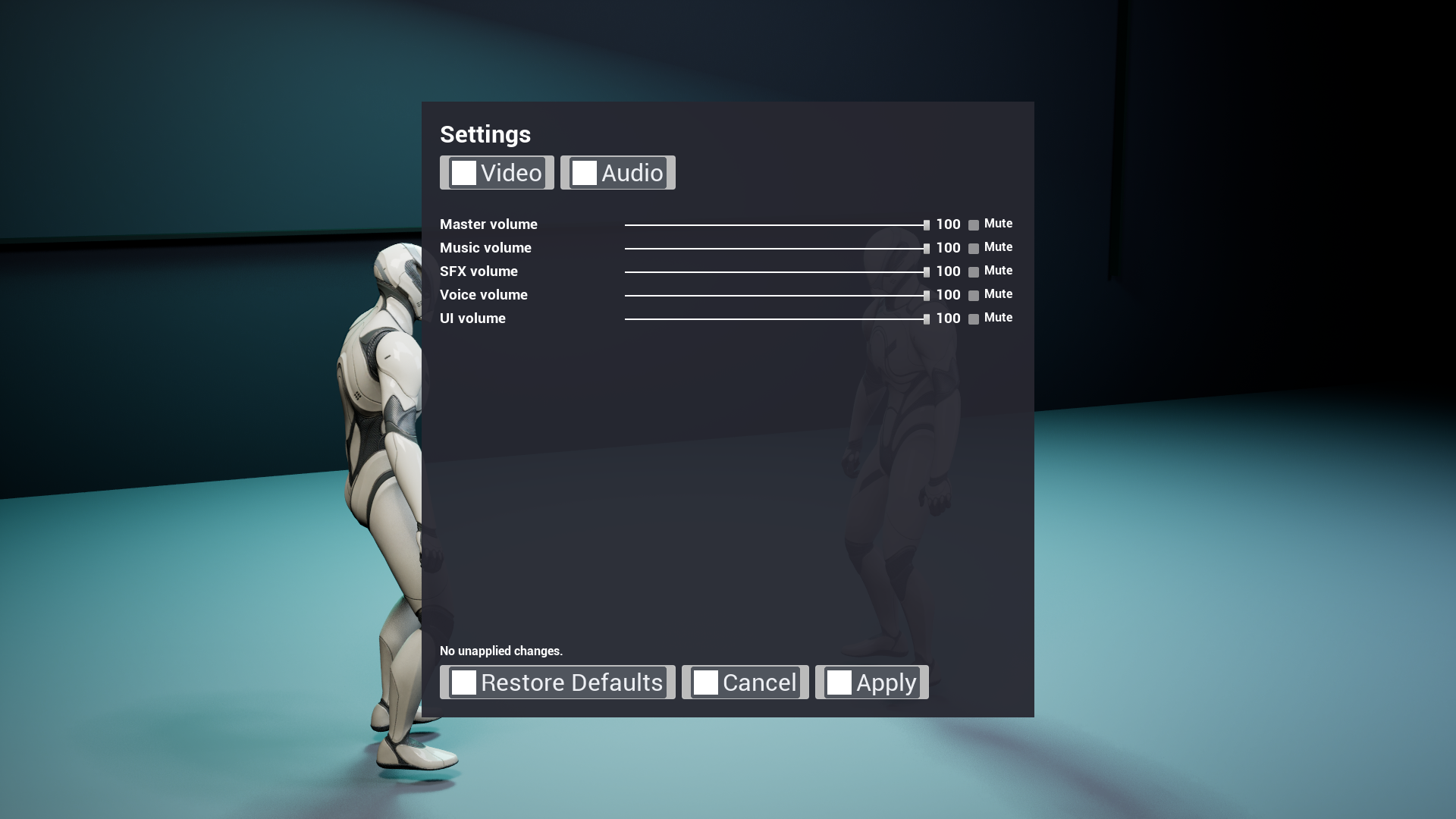
Example player-facing audio settings screen